
Outlook
Bring Outlook mail and calendar into Littlebird so Chat can help without waiting for Outlook to be open, with Hummingbird on Mac too.
The Outlook integration lets Littlebird work with your calendar and email even when Outlook is not open. You can currently connect one Outlook account.
Once connected, Littlebird can read your schedule, create events, search your inbox, draft replies, and more from Chat. On macOS, you can also use Hummingbird Quick Access (not available on Windows).
How to connect
- Open Settings → Integrations.
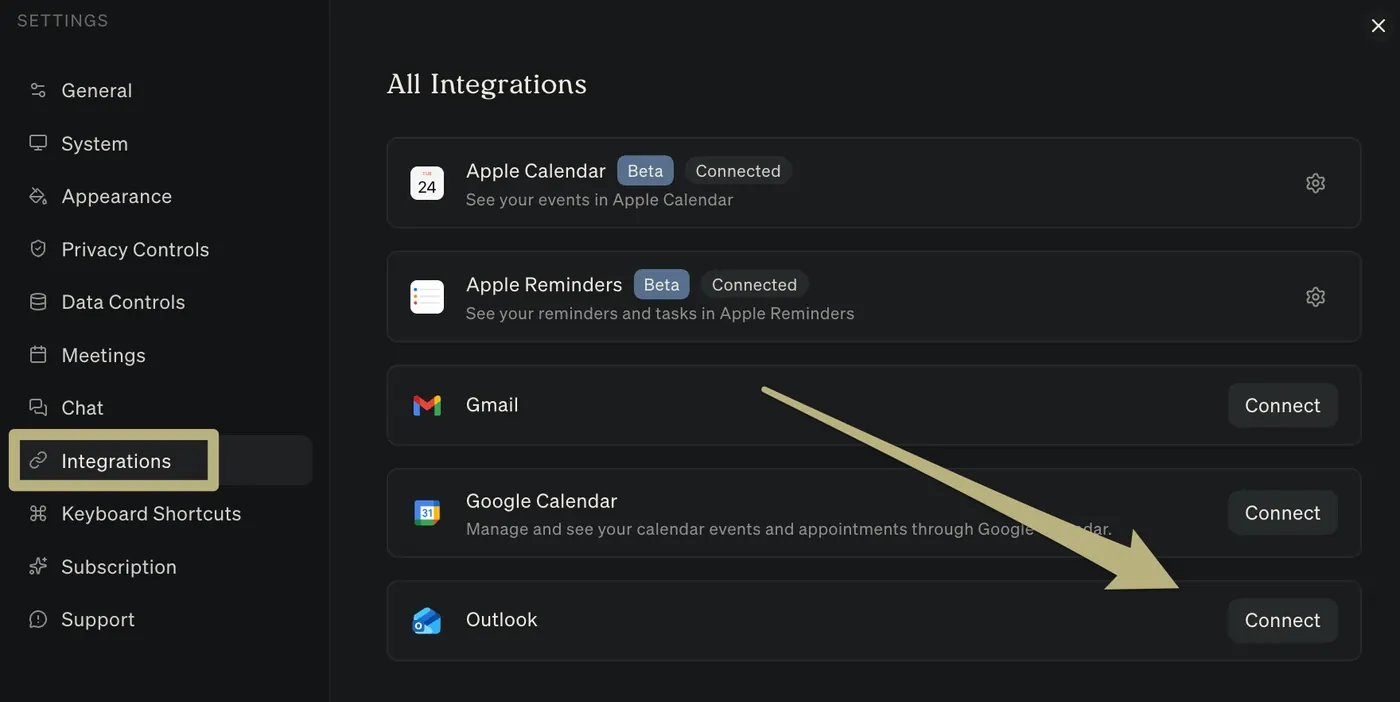
- Find Outlook, then select Connect.
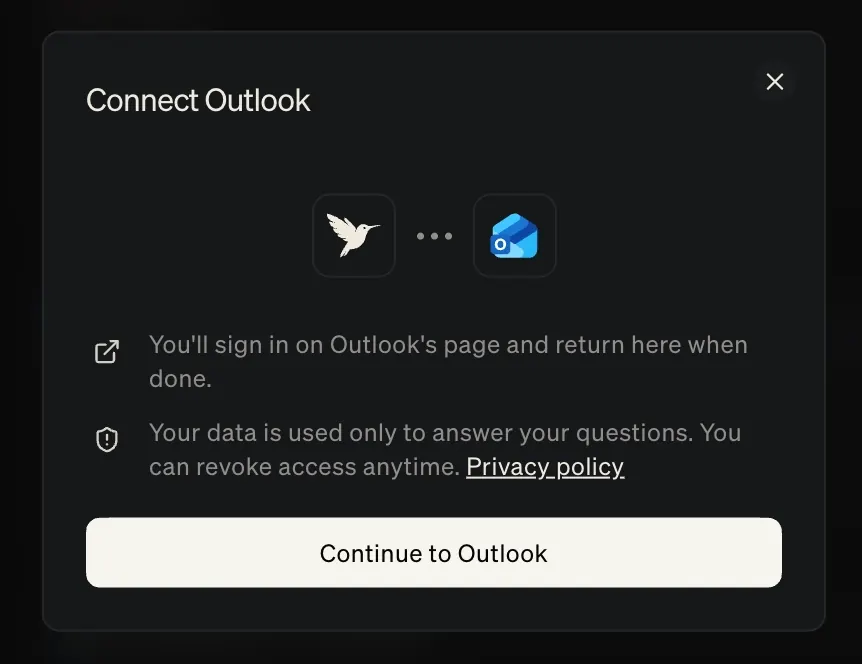
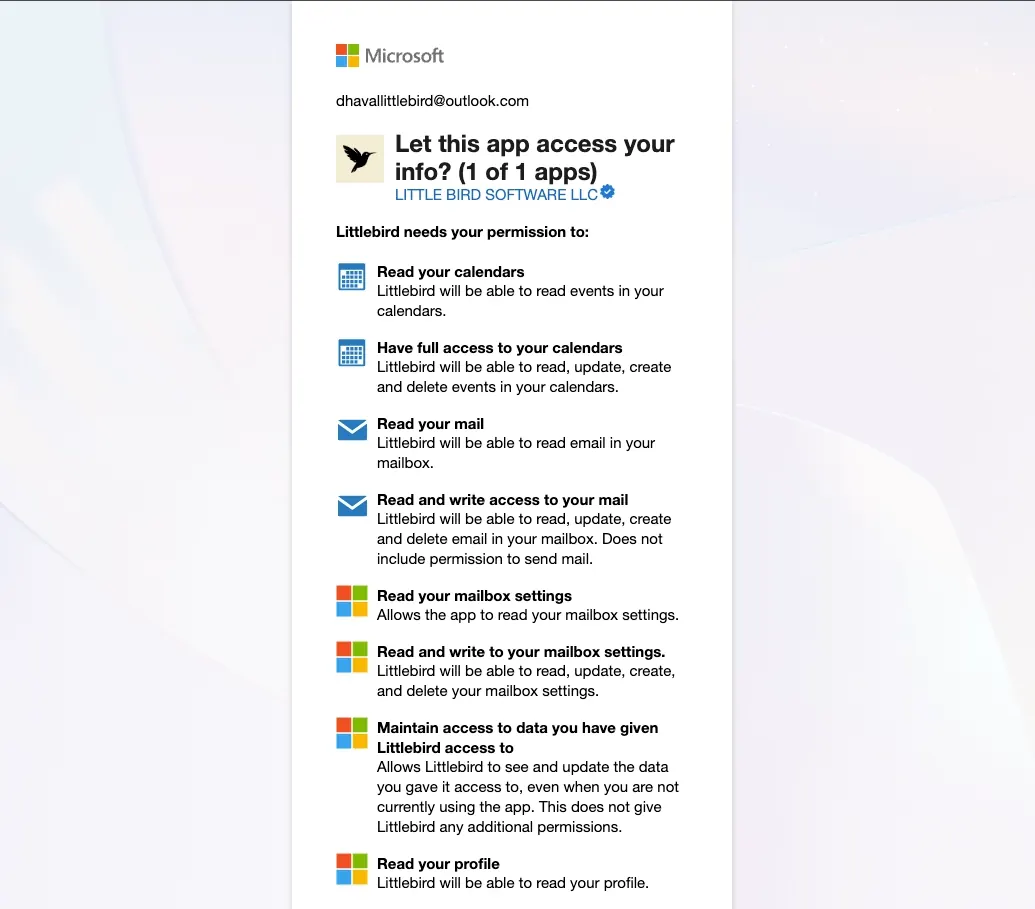
- Sign in with your Microsoft account and approve access.
- Confirm that Outlook appears as active in your settings.

What you can do
Calendar
With your Outlook calendar connected, Littlebird can:
- View your schedule and upcoming events
- Create, edit, and delete calendar events
- Cancel events and notify attendees
- Find available meeting times
- Check coworker availability
Try these prompts:
What does my schedule look like for the rest of this week? Flag any conflicts or back-to-back blocks.
Schedule a 30-minute meeting with [name] sometime Thursday afternoon. Find a time that works for both of us.
Reading email
Littlebird can search and read your Outlook email directly:
-
Search for emails by keyword, sender, or date across all folders or within a specific one
-
Read full message content
-
Move emails across folders
-
View attachment info (file names, sizes, and types)
- Cannot download and view underlying attachment content
Try these prompts:
Find the most recent email from [name] about the project timeline.
Show me any unread emails in my inbox from the last 24 hours. Organize them by urgency.
Drafting and organizing email
Littlebird can also help you compose and manage messages:
-
Draft new emails, replies, and forwards
- These will then exist in your Drafts folder
-
Move messages between folders
-
Mark messages as read or unread
-
Flag and categorize messages
Try these prompts:
Draft a reply to [name]’s email about the contract review. Keep the tone professional and confirm the Friday deadline.
Move all emails from [sender] to my “Reviewed” folder.
Tip: Try quickly scheduling a calendar event or drafting an email with Hummingbird Quick Access (macOS only; use Chat on Windows)
What’s not currently supported
To keep the integration secure and focused, a few actions are not available:
- Sending emails. Littlebird can draft emails for you, but sending happens on your end. This keeps you in full control of what goes out
- Downloading or adding attachments. Littlebird can see attachment info but can’t open, download, or attach files
- Inbox rules. Creating or modifying mail flow rules is not supported
- Deleting emails. Littlebird can move and organize messages but can’t delete them
If you also use Gmail or Google Calendar
Littlebird supports both Microsoft and Google integrations, and you can connect them simultaneously. Here’s how they compare:
| Capability | Outlook | Gmail + Google Calendar |
|---|---|---|
| Read emails | ✓ | ✓ |
| Draft, reply, and forward emails | ✓ | ✓ |
| Move, flag, and categorize emails | ✓ | — |
| Send emails | — | ✓ |
| Calendar: view, create, edit, and delete events | ✓ | ✓ |
| Check coworker availability | ✓ | ✓ |
Outlook and Gmail can both bring email context into Littlebird and support email actions. The exact actions depend on the integration and the permissions you approve.
Troubleshooting
The integration isn’t connecting. Check whether your organization requires admin approval for third-party app access. If you’re on a personal Microsoft account, try signing out and reconnecting from Settings → Integrations.
Littlebird can’t find my calendar events. Make sure the events are on the primary calendar associated with your connected account. Shared or delegated calendars may not sync automatically.
I connected Outlook but Littlebird is still only reading my screen. After connecting, try asking a direct question about your calendar or email (e.g., “What meetings do I have tomorrow?”). The integration activates when Littlebird needs to pull data beyond what’s visible on your screen.