Meeting workflow
Use Littlebird across the whole meeting — arrive prepared, stay focused, then turn the conversation into clear follow-up.
Use Littlebird across the meeting
Littlebird can help before, during, and after a meeting: gather the background, capture the conversation, then turn it into follow-up.
Think of the workflow in three parts: prepare, record, and follow up.
Part 1: Prepare
Instead of searching through your inbox or Slack history 5 minutes before a call, let Littlebird assemble the context for you.
How to do it
Since you’ve already connected your Calendar, Littlebird knows who you are meeting. Before your next call, try these prompts:
The refresher
I have a meeting with [name] coming up. Remind me what we discussed last time and prepare me for what we should focus on.
The agenda builder
Based on my last chat with [name], suggest three agenda items for our call today.
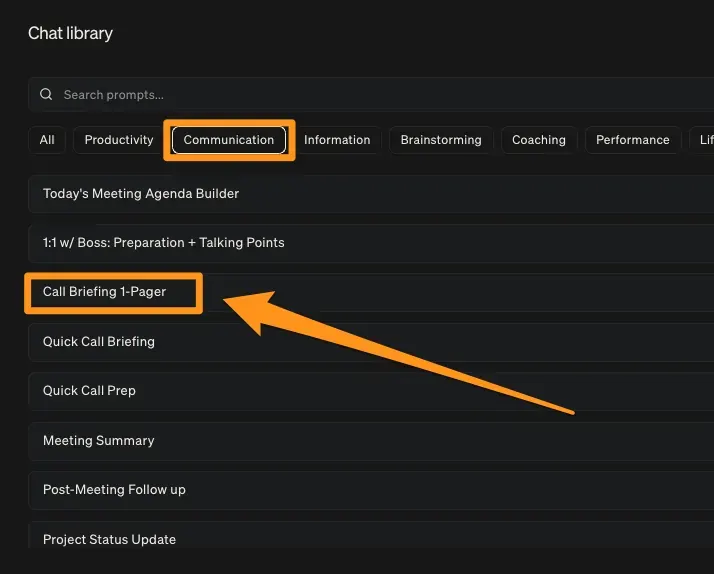
To save time, try using our Chat Library again and going to the Communication section.
Choose Call Briefing 1-Pager and tell Littlebird who you’ll be meeting with.
After Littlebird creates the briefing, tell it what to add or change. For example:
Add a section on the ideal outcomes for this meeting.
Select the Star icon to keep the Chat in your favorites, then rename it Call prep so it is easy to reuse.
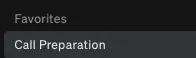
Littlebird will remember the opening prompt, and you can use this thread going forward as your go-to chat for call and meeting preparation.
Next time you have a call, open this chat and send:
Now prepare me for my call with [name].
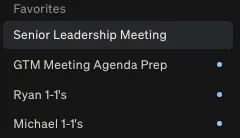
Our team creates dedicated Chat threads for key team meetings so it’s easy to show up prepared and ready to contribute.
Part 2: Record
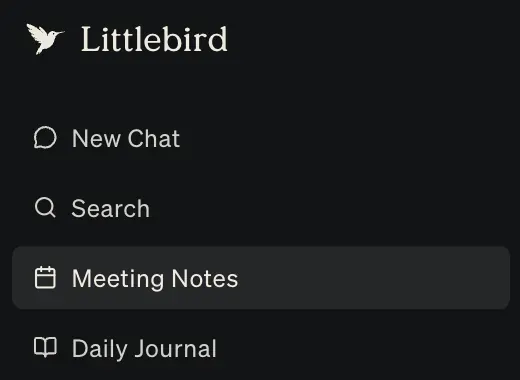
The best way to be present in a meeting is to stop worrying about taking notes. Littlebird’s Meeting Notes feature captures the audio and transcript so you can focus on the conversation.
How it works
Littlebird gives you two easy ways to capture a meeting, ensuring you’re always in control.
Option 1: The automatic prompt
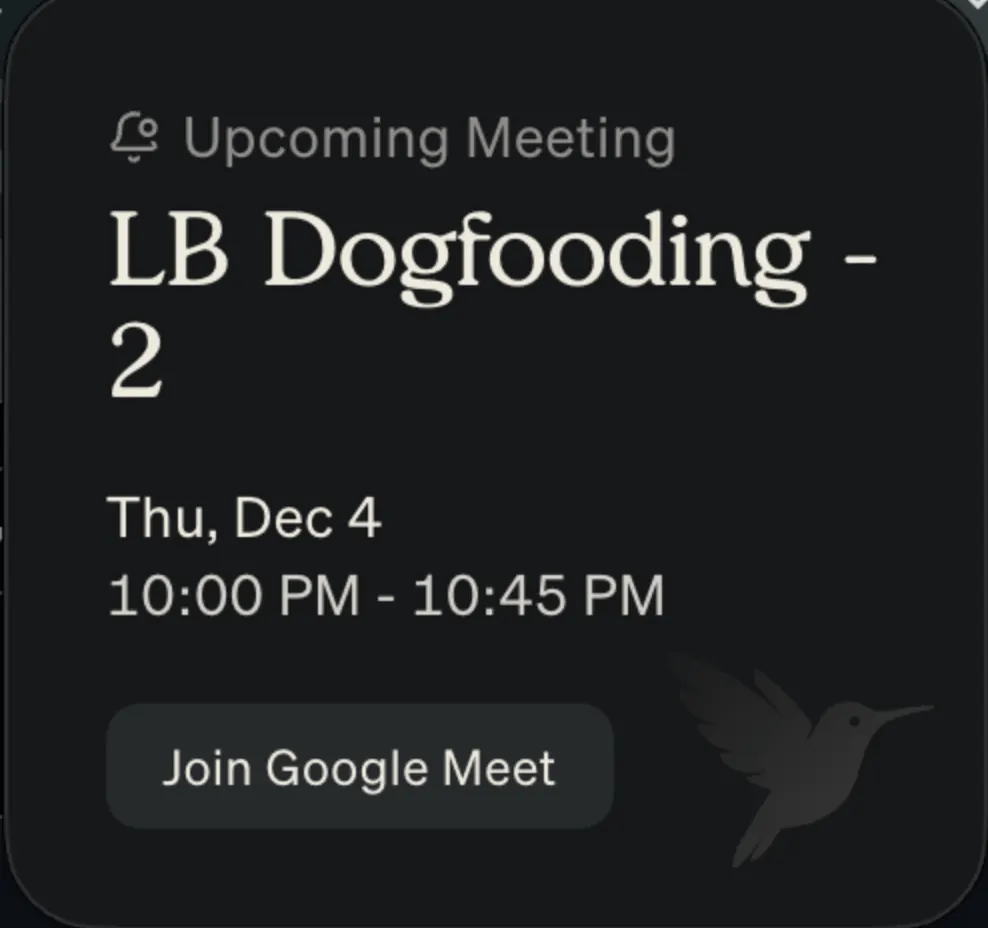
A few minutes before any event on your calendar, Littlebird will automatically display a small pop-up asking if you’d like to record the upcoming meeting.
Select Join Meeting, and Littlebird will be ready to capture the conversation when it begins. You can configure the reminder timing in Settings.
Option 2: Manual recording
You can also open Meeting Notes and select + New Note to begin transcribing.
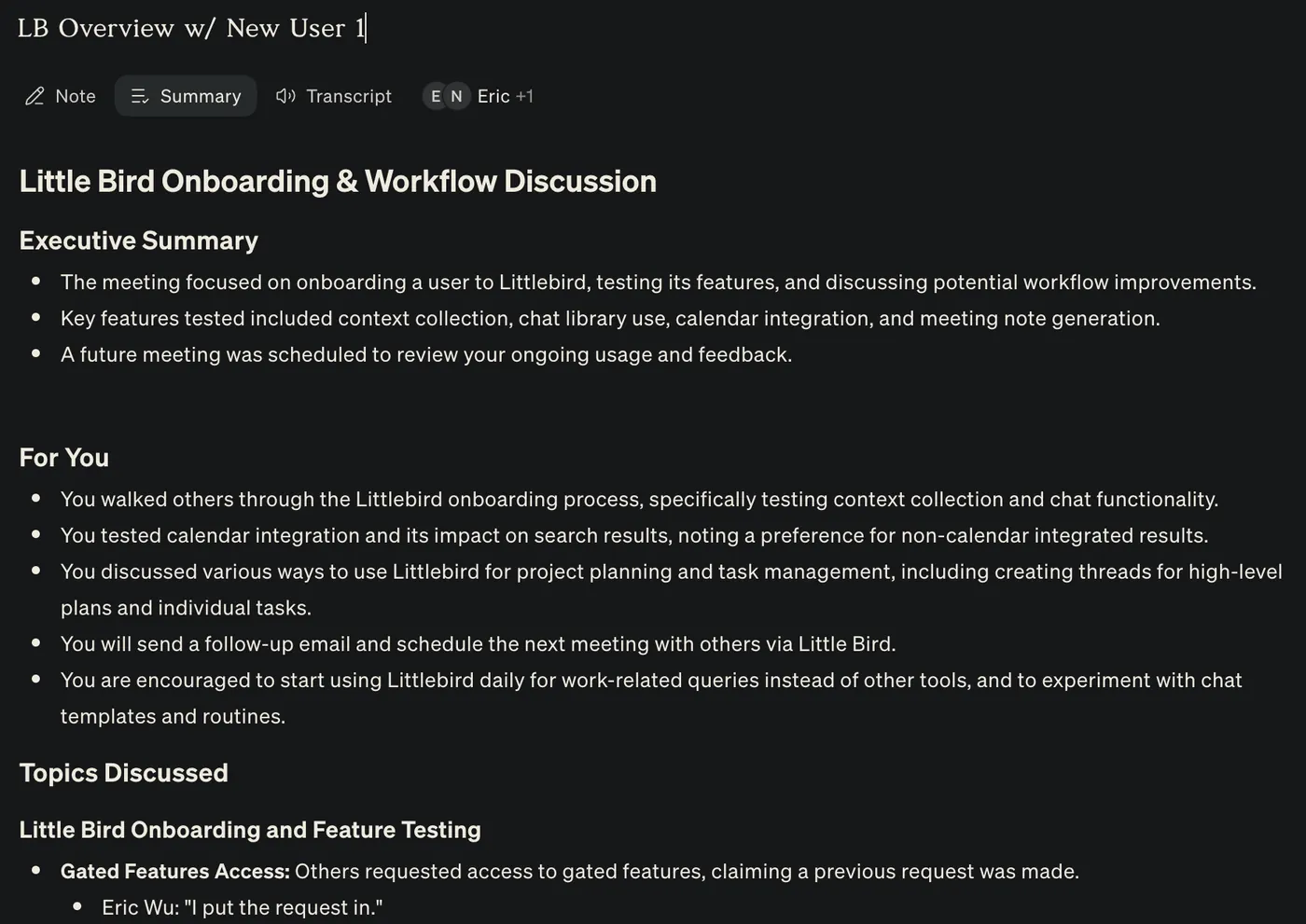
Once the meeting is over, you’ll see a Summary output you can review and edit:
Part 3: Follow up
You just finished a 45-minute strategy session. It was productive, but long, and now you need to send a summary to the team.
Use the transcript and summary to prepare the follow-up while the conversation is still fresh.
The workflow
1. Summarize: Immediately after the recording ends, open a new chat:
Summarize the call I just had. Highlight the key decisions and any action items assigned to me.
2. Draft: Ask Littlebird to write the email in the same thread:
Draft a follow-up email to the participants summarizing those points. Keep the tone casual but clear. Include the email addresses for all attendees at the top.
3. Verify: Read the draft, make any small tweaks, then copy it into your email.
Alternatively, feel free to try using the Chat Library again and using one of the post-meeting prompts under the Communication section.
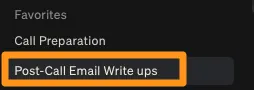
Star the thread if you want to reuse the same summarize, draft, and verify workflow after future meetings.