
Context exclusions
Keep private apps, websites, and browsing out of Littlebird’s context by adding a few clear exclusions.
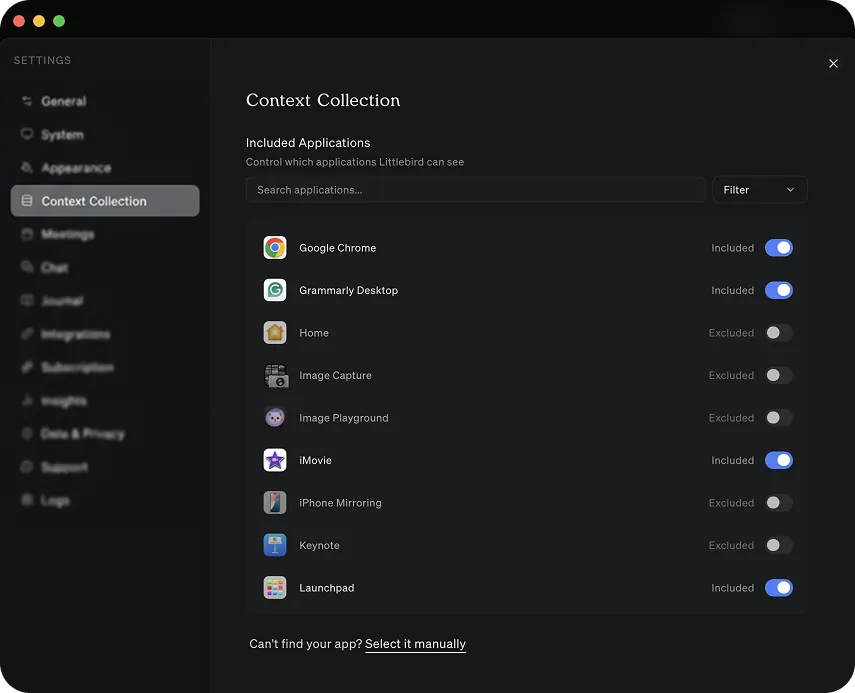
Excluding specific applications
If an app should stay outside Littlebird’s context, add it to the exclusion list:
- Open Settings in Littlebird.
- Go to Privacy Controls.
- Choose the apps Littlebird should exclude.
These controls let you keep useful Context Awareness on without including every part of your work.
Automatically excluded content
Littlebird takes a few precautions automatically, so you do not have to configure them yourself:
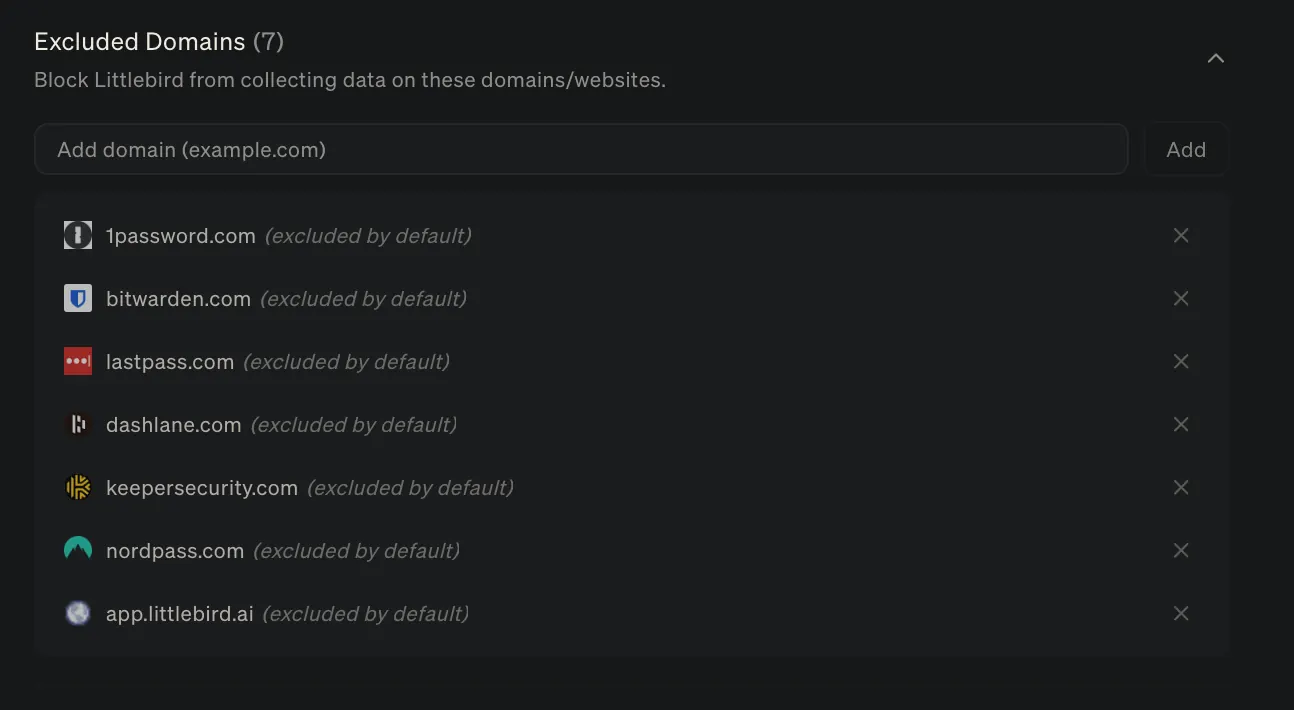
- Password managers are auto-detected and excluded by default. Apps like 1Password, Bitwarden, LastPass, and similar tools are kept out of your context without any setup.
- Sensitive data such as credit card numbers and API keys are auto-redacted before being stored.
- Password fields are always ignored, even in apps that are not excluded.
Excluding website domains
Add a domain to the website exclusion list when you do not want Littlebird to include pages from that site.
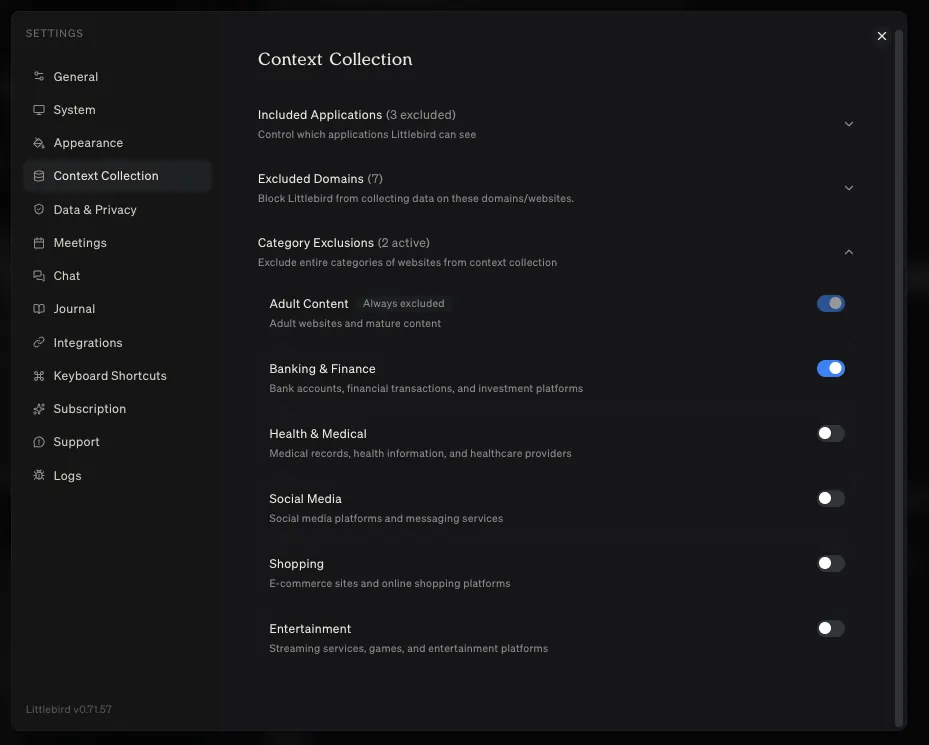
Excluding categories
Category exclusions cover groups of sites, so you do not have to add every domain yourself. Adult content is always excluded by default. Available categories include Banking, Social Media, Shopping, Entertainment, and Health. Turn on any category you want Littlebird to leave out; a blue toggle means the exclusion is active.
Deleting collected context
If you want to remove context that Littlebird has already collected, you can delete it directly from the Context Awareness menu:
- Delete the last hour of context
- Delete the last day of context
For a broader reset, you can delete all stored context from Settings → Privacy Controls.