Context awareness
See how Littlebird learns from the work on your screen, what it leaves alone, and how to pause or shape the context it keeps.
How Littlebird understands your work
Littlebird understands what you are working on through Context Awareness. It reads visible text and interface elements from the active app, then uses that context when you ask for help.
You decide when it runs and what stays outside its view.
How Littlebird gathers context
Instead of recording your screen with video or screenshots, Littlebird reads the text and elements of your active applications, content that is currently visible on your screen. This includes things like:
- Text from documents, emails, or websites you are actively viewing
- The names of the applications you are using (e.g. Slack, Google Chrome)
- Information from your meeting notes or project plans if they are displayed on your screen
This process runs every few seconds and builds a private, encrypted index of your recent activity. That index gives Littlebird its memory of your work.
What Littlebird does not do
Your privacy is our highest priority. To be perfectly clear:
- Littlebird is not a screen recorder or a keylogger. It does not record video of your screen or log your individual keystrokes.
- It does not capture passwords. It is designed to automatically ignore password fields.
- Your data is always private and encrypted. It is never used to train our or any third-party AI models.
You are always in full control. In Littlebird’s settings, you can exclude any application from context awareness, and you can delete your past context at any time.
How to control context awareness
You have full, immediate control over when Littlebird is aware of your context. The primary control is located directly within the app window.
1. The context status button:

When you have the Littlebird app open, the context status button in the bottom-left corner shows the current status:
- Green light: When the dot is green, it means context awareness is active. Littlebird is learning from the visible content on your screen.
- To Pause: Simply click the green dot, and you’ll have an option to Pause context awareness with a variety of options. Once paused, the button will turn gray.
- To Resume: Click the context button again and select Resume. It will turn green, and context awareness will resume.
2. The menu bar icon (Mac):
For quick access when the main app window is closed, you can also use the Littlebird icon in your Mac’s menu bar (at the very top of your screen). Clicking this icon gives you the same options to Pause or Resume context awareness.
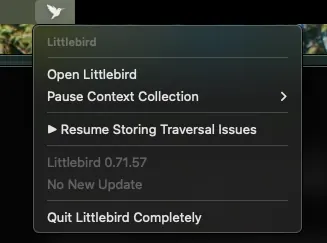
You will also see a pause icon next to the Littlebird icon when Context Awareness is paused:

3. The system tray icon (Windows):
On Windows, closing the Littlebird window keeps the app running in the background. Find the Littlebird icon in the system tray (bottom-right corner of your screen, near the clock). Click it to Pause or Resume context awareness, or to reopen the main window.
Pause duration options:
When you pause context awareness, you can choose how long to stay paused:
- 5 minutes - quick pause for a sensitive task
- 15 minutes - step away without losing your flow
- 30 minutes - longer break or focused work without context
- 1 hour - extended pause
- Until next launch - pause until you manually resume or restart Littlebird
Extra tip: Enable Google Docs accessibility for Littlebird
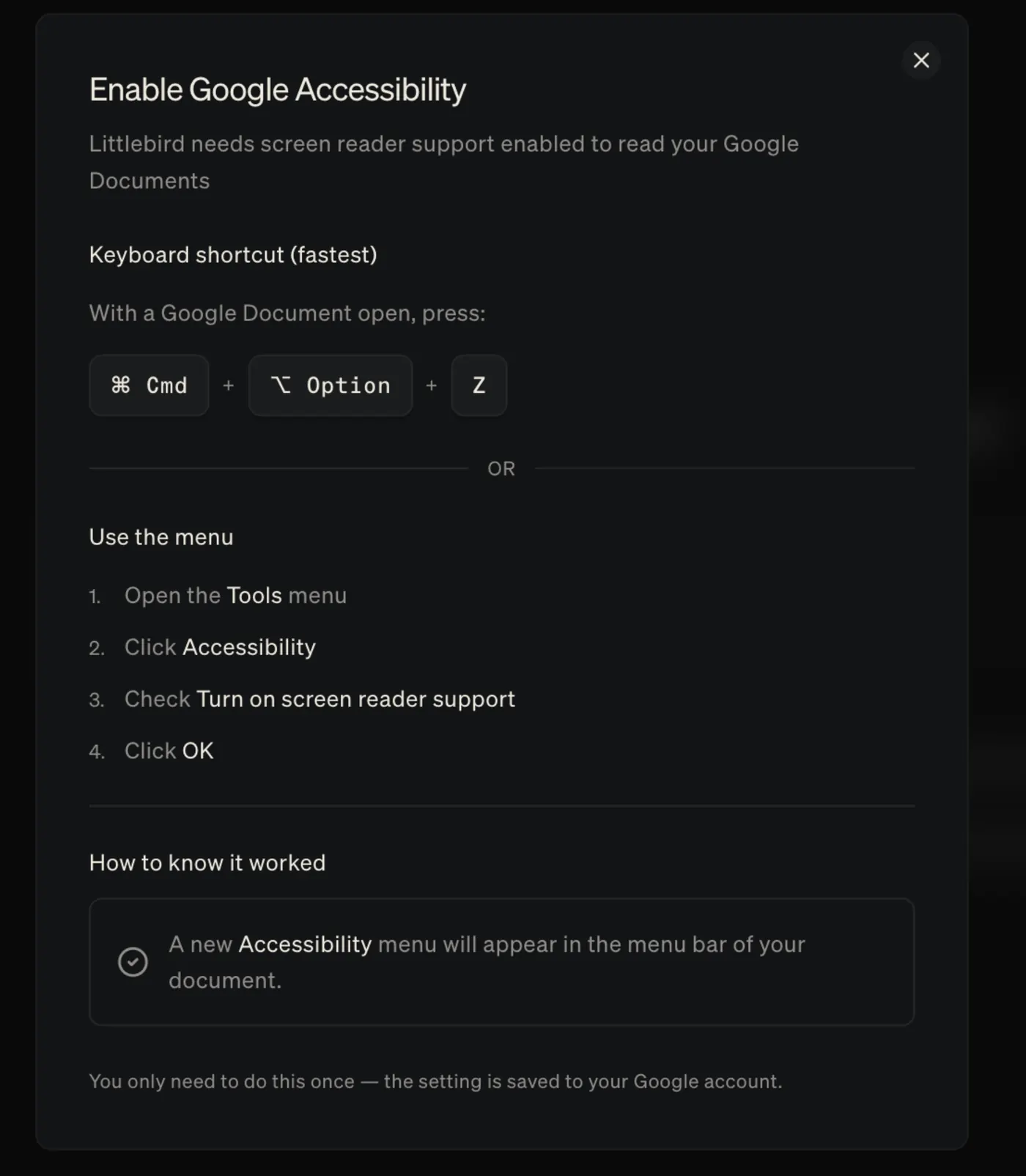
Enabling screen reader support in Google Docs will allow Littlebird to better read and capture content from your documents. This is a one-time setup - once it’s on, the setting is saved to your Google account.
Option 1: Keyboard Shortcut (Fastest)
With any Google Doc open, press:
Cmd + Option + Z
That’s it! Google will activate screen reader support instantly.
Option 2: Enable via the Menu
If you prefer to use the menu:
- Open the Tools menu in Google Docs
- Click Accessibility
- Check Turn on screen reader support
- Click OK