
Hummingbird
Bring Littlebird over the app you’re already using with Hummingbird, a quick AI overlay that keeps you in the flow.
Hummingbird, right where you are
Hummingbird opens Littlebird over the app you are already using, so you can ask for help without leaving the work behind.
Hummingbird is available on macOS, not Windows.
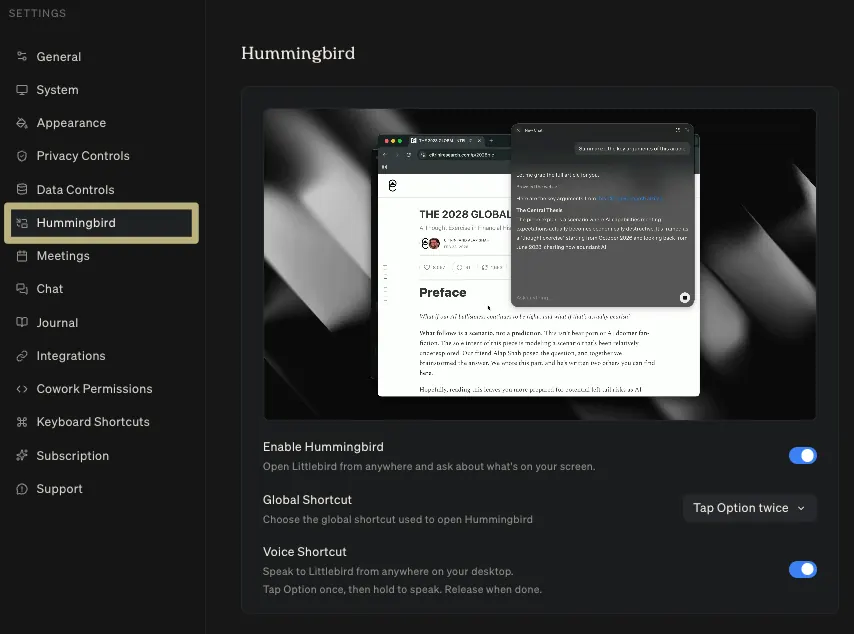
Enable Hummingbird
Hummingbird is available to all Littlebird users. To turn it on:
- Open Littlebird and go to Settings → Hummingbird.
- Turn on Enable Hummingbird.
Hummingbird is now ready to open.
How to use it
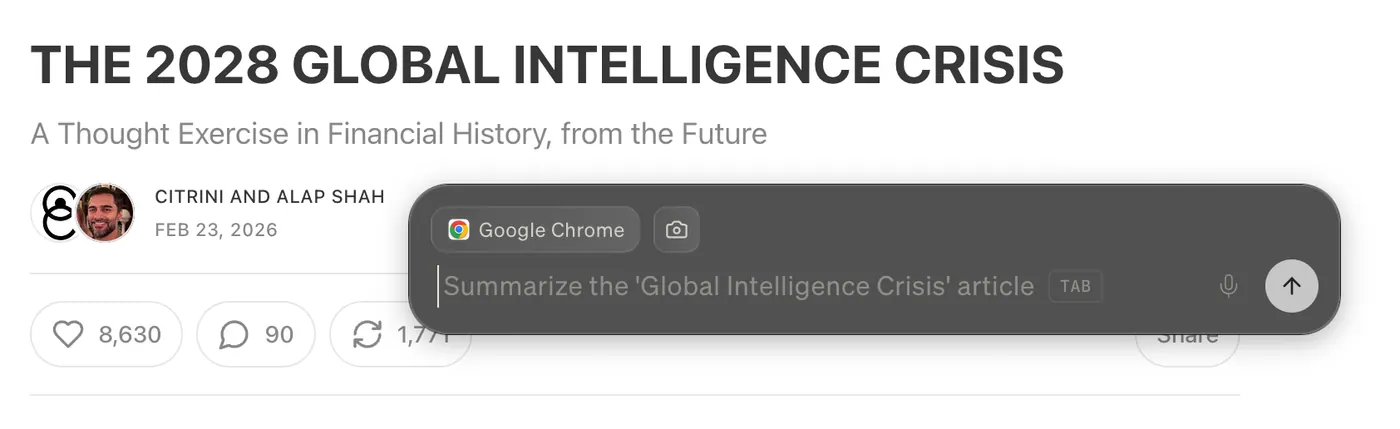
Double-tap the Option key from anywhere on your Mac. The Hummingbird panel will appear over your active window.
When you’re done, press Option + Option again or select outside the panel to close it.
What Hummingbird can see
When you open Hummingbird, it can use:
- Your active screen: whatever app or window is in front of you
- Your live meeting transcript: if Meeting Notes is running, Hummingbird can tap into the conversation in real time
This lets you ask about the work in front of you without pasting it into Chat first.
Hummingbird sees the active screen when you ask it a question. Your app and website exclusions do not apply to this on-demand view.
Useful ways to use Hummingbird
Ask about a live meeting
When Meeting Notes is running, select the meeting button in Hummingbird. Its circular icon turns red when the live transcript is connected.
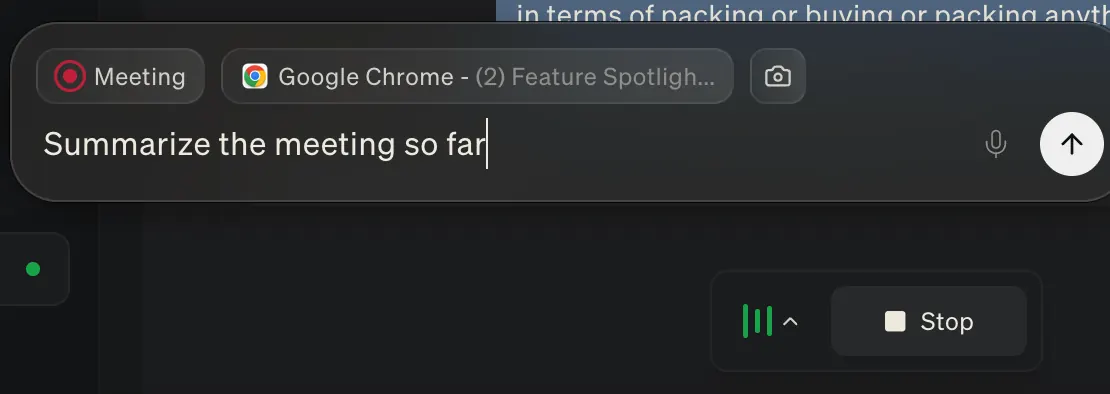
Ask questions mid-call without breaking your focus:
- “Summarize the meeting so far”
- “What action items have come up?”
- “What did [Name] say about the timeline?”
Ask about the active window
Try a question that matches what is on your screen:
- Email or support thread: “Draft a reply that addresses their concern and sets expectations for next steps.”
- Slack thread: “Catch me up on this conversation and tell me what’s being asked of me.”
- CRM record: “Summarize this customer’s history and suggest a good next touchpoint.”
- Document or proposal: “What are the three most important things on this page, and what is missing?”
- Dashboard: “What is the headline here, and which change needs attention?”
- Your own draft: “Make this more direct without making it cold.”
Open a quick Chat
Sometimes you just need a fast answer without opening the full app. Hummingbird gives you access to the same Littlebird AI you know, just lighter and right where you’re working:
- Rephrase something before you hit send
- Pull up a quick summary of recent activity
- Ask a question while staying in your current workflow
Keep Hummingbird focused
-
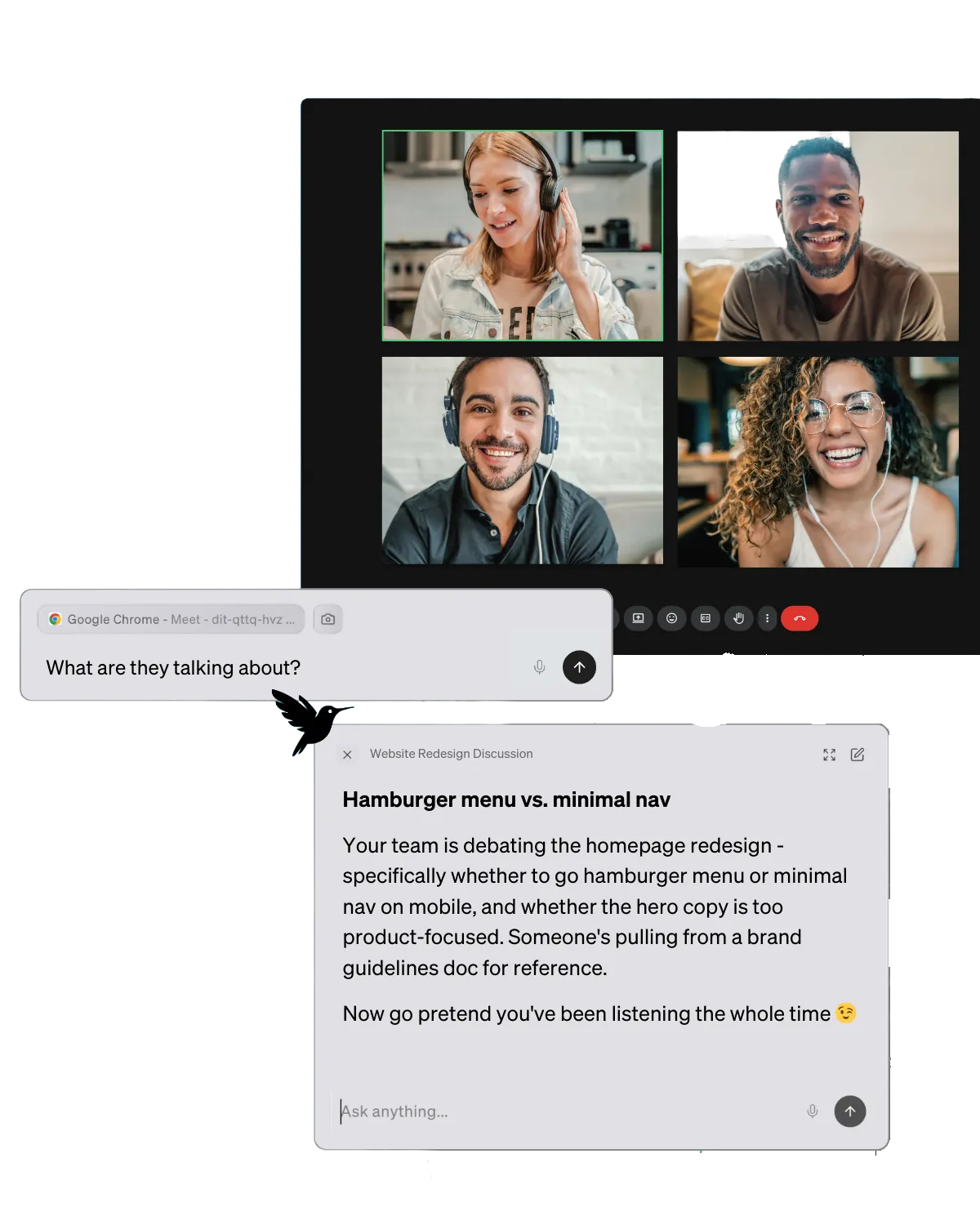
Use it during calls: if Meeting Notes is active, Hummingbird is tapped into the live conversation
-
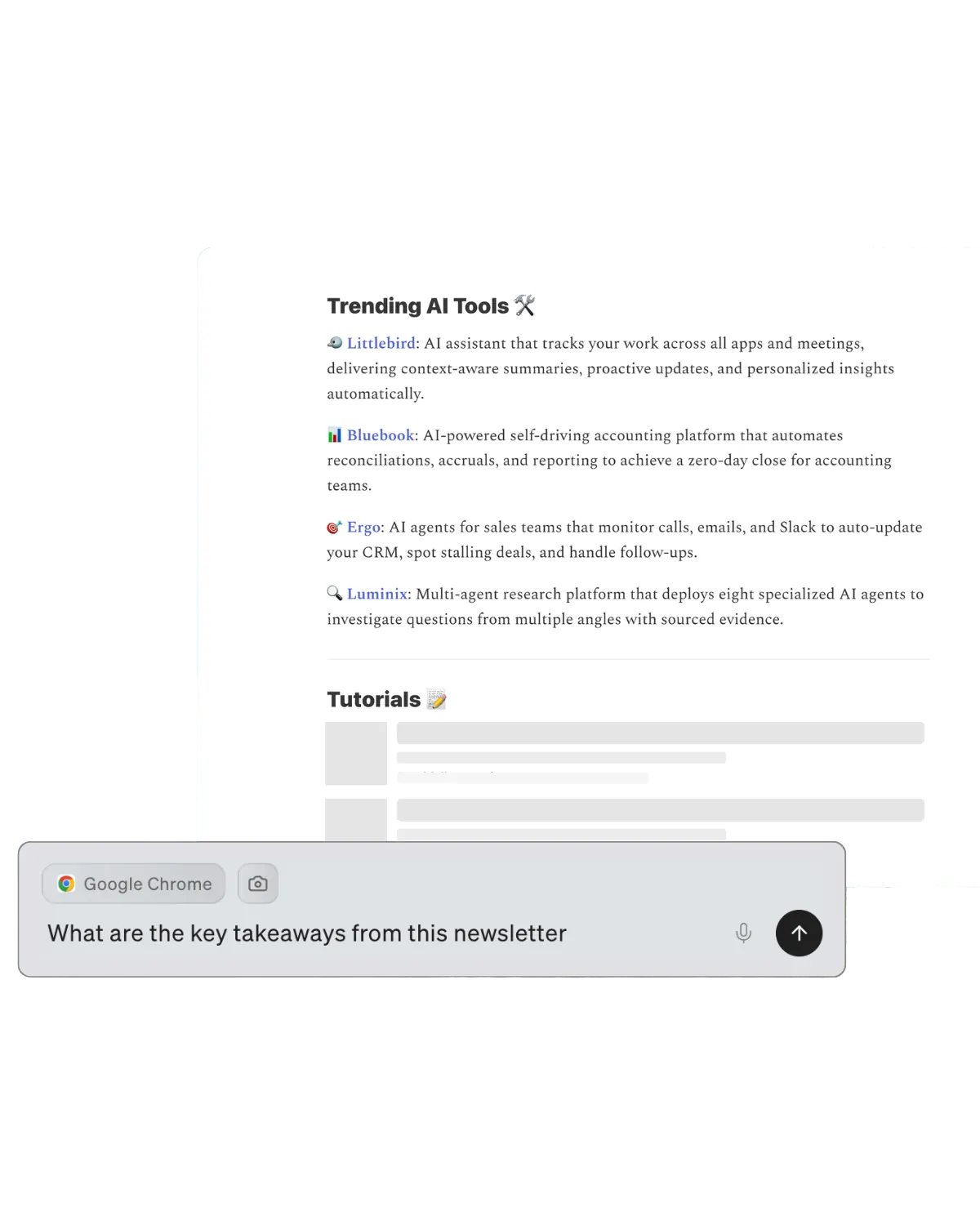
While doing research: Summarize what you’re reading or ask how it compares to something else you’re working on.
-
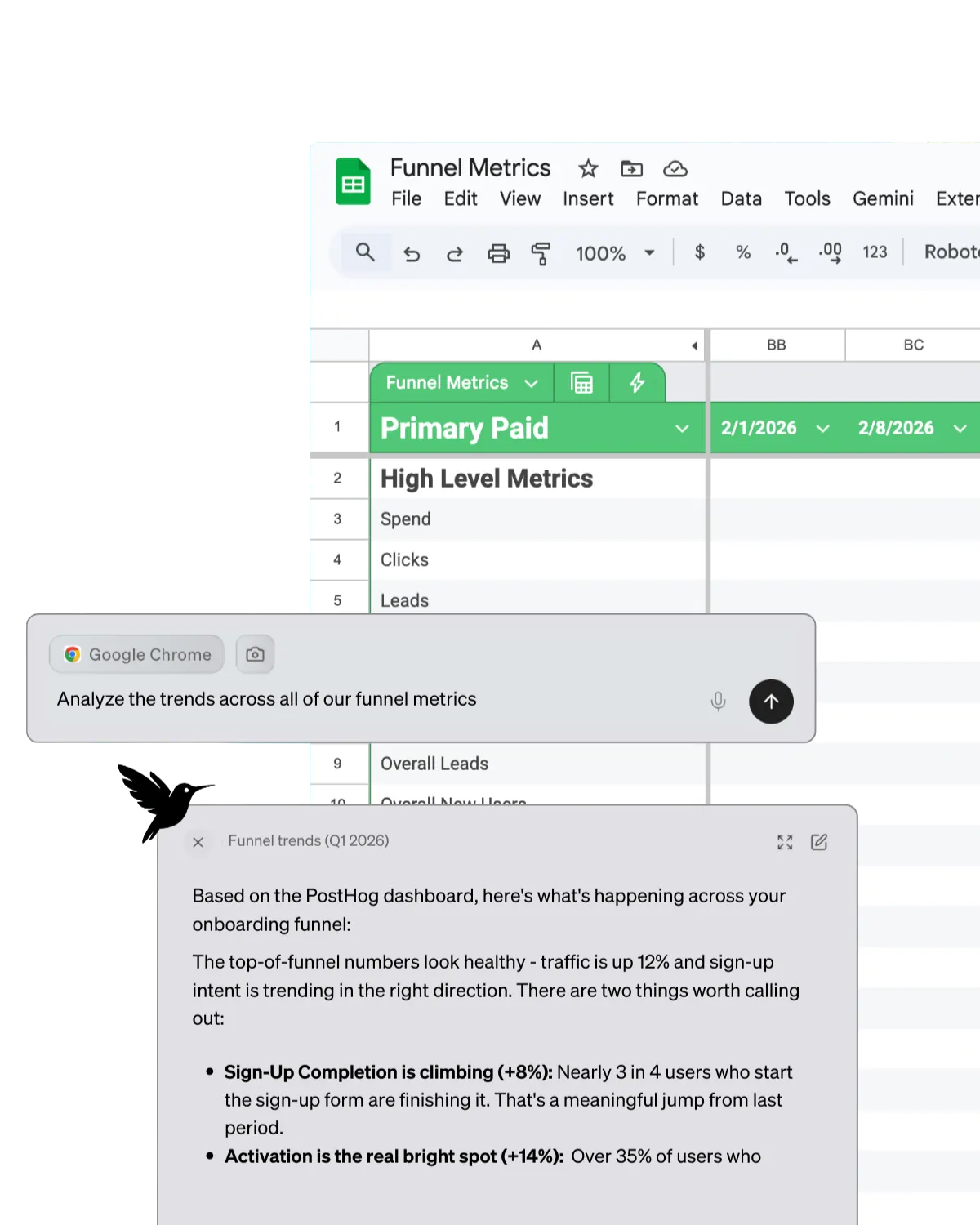
In a spreadsheet or dashboard: Ask Littlebird to explain what’s driving a change, or help you write a summary of the results for your team.
Hummingbird works best for quick questions about the current screen or meeting. Use the full Chat interface for a longer conversation or a multi-step task.
Questions or feedback?
We’re always looking to improve. If something feels off or you have an idea, drop us a note at support@littlebird.ai or tap Feedback in the app.