
Google Calendar
Search and shape your schedule from Littlebird Chat by connecting Google Calendar once, then leaving the tab-switching behind.
Search, reference, and create Google Calendar events from Littlebird Chat without switching tabs.
Connect in 30 seconds
You only need to connect an account once.
- Open Settings → Integrations.
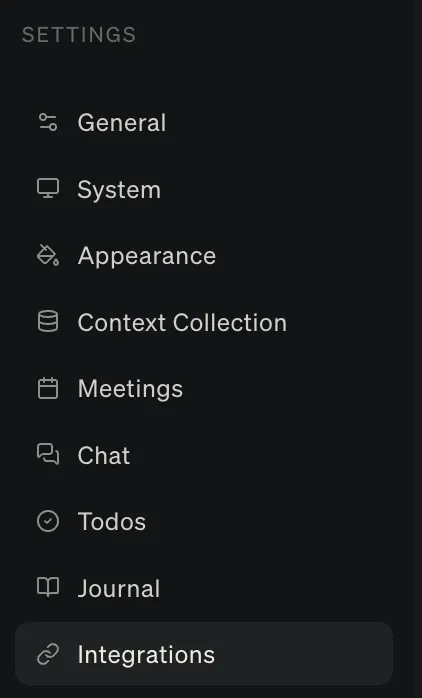
- Find Google Calendar and turn it on.
- On the Google authentication screen, choose the account you want to connect.
- Review the permissions, then select Allow.
- Return to Littlebird and confirm the Active status.

Your privacy and security are our top priority. The connection is secure, private, and you are always in control. You can read more on our privacy page.
Managing your connection
You can disconnect your Google Calendar at any time. Simply return to Settings → Integrations and click the delete button (trash icon).
Connecting multiple Google Calendars
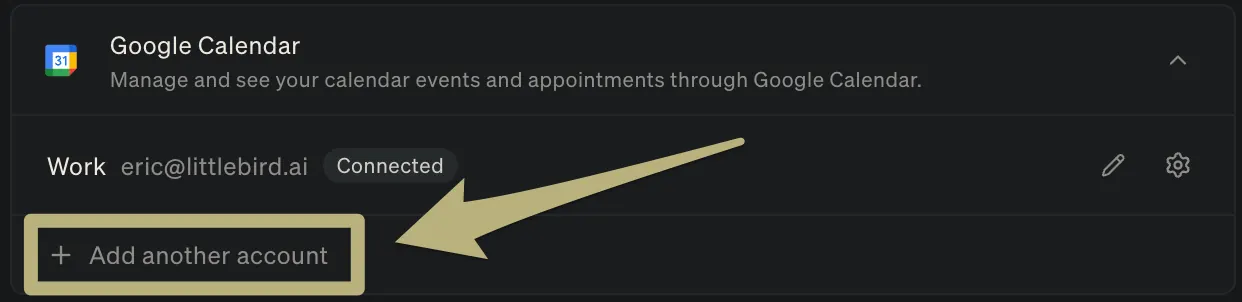
You can connect multiple Google Calendars by clicking the “+Add another account” button. Reference the calendar by name in Chat to specify which one you’re using.
Manage your schedule in Chat
Imagine scheduling a meeting with a single sentence. Or blocking off focus time that automatically includes a full project plan in the description. Now, this is a reality with the Google Calendar integration for Littlebird.
4 ways to manage your calendar with Littlebird
Once you’re connected, you can manage your entire schedule with simple, natural language, directly from the Littlebird Chat on any device. Here are four powerful workflows you can use immediately.
Use case 1: Instantly review your calendar for openings
Littlebird can review your calendar for scheduled events and open times. If your colleagues have shared their calendars, it can find shared openings as well.
When am I free next Tuesday afternoon?
Find a few shared 30-minute openings between John and me next Tuesday or Wednesday afternoon.
Review and list each calendar event I have this week, then prepare me accordingly.
Use case 2: Schedule events right from Chat
Instead of the multi-step process of creating a new event on your phone, you can do it all in a single sentence from Chat on both our desktop and mobile apps.
Schedule a 30-minute meeting with sarah@example.com tomorrow at 9 am to discuss the project proposal. Call it “Proposal review.” In the event description, add an agenda with the meeting goal and ideal outcomes.
Create a one-hour event next Friday at 2 pm PT called “Weekly planning” and invite alex@example.com and jamie@example.com.
Use case 3: Generate agendas or instructions as your event description
This is the fastest way to turn a calendar block into something you can actually execute. Have Littlebird draft the agenda, checklist, or step-by-step plan, then place it directly into the event description so everything is waiting for you when the time comes.
Create a one-hour event on my calendar for Friday at 10 am called “New hire onboarding brainstorm.” In the description, add a simple agenda with three topics: review the current 30-day plan, brainstorm key training sessions, and assign onboarding buddies.
Use case 4: Schedule “deep work” blocks with a built-in plan and links
This is where your calendar and your AI truly become one. Block off time for focused work and have Littlebird automatically embed a complete plan—including instructions and all relevant links—directly into the event description.
I need to write the PRD for the new “Meeting notes” feature. Block off a two-hour “Deep work” session on my calendar for tomorrow afternoon. In the event description, create a step-by-step plan to draft the PRD, including links to the three most recent user feedback documents, other links I should review, and the place where I should submit the PRD.