
Google Calendar integration
Search, reference, and create Google Calendar events directly from Littlebird Chat, no more switching between apps.
Connect in 30 seconds
Connecting your account is a one-time, secure process.
Navigate to Settings > Integrations.
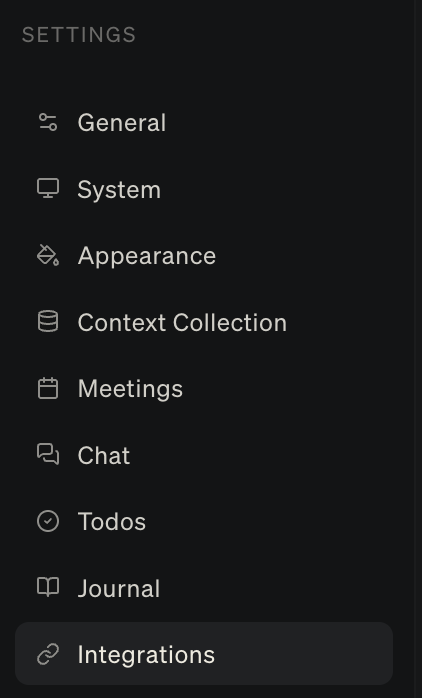
Find "Google Calendar" and toggle it on.
You will be redirected to a Google authentication screen. Choose the Google account you want to connect.
Review the permissions screen and click Allow.
You'll be redirected back to Littlebird, where you'll see the 'Active' status.

Your privacy and security are our top priority. The connection is secure, private, and you are always in control. You can read more on our privacy page.
Managing your connection
You can disconnect your Google Calendar at any time. Simply return to Settings > Integrations and click the delete button (trash icon).
Connecting multiple Google Calendars
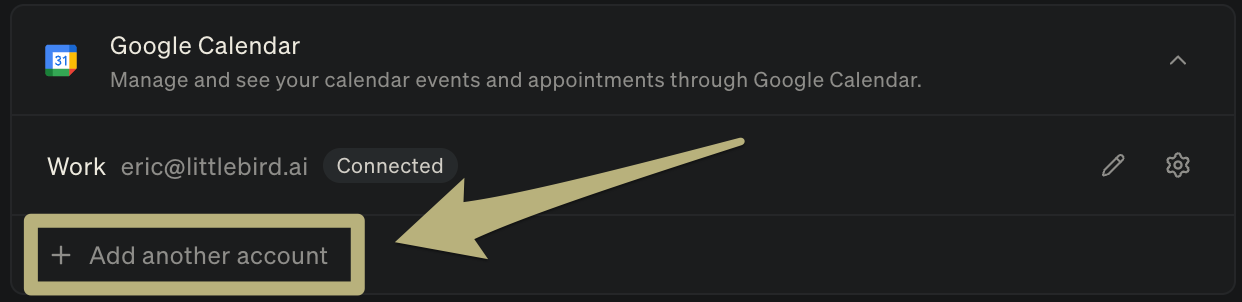
You can connect multiple Google Calendars by clicking the "+Add another account" button. Reference the calendar by name in Chat to specify which one you're using.
Manage your schedule in Chat
Imagine scheduling a meeting with a single sentence. Or blocking off focus time that automatically includes a full project plan in the description. Now, this is a reality with the Google Calendar integration for Littlebird.
4 ways to manage your calendar with Littlebird
Once you're connected, you can manage your entire schedule with simple, natural language, directly from the Littlebird Chat on any device. Here are four powerful workflows you can use immediately.
Use case 1: Instantly review your calendar for openings
Littlebird can review your calendar for scheduled events and open times. If your colleagues have shared their calendars, it can find shared openings as well.
Prompt:
When am I free next Tuesday afternoon?Prompt:
Find a few shared 30 minute open calendar slots between John and me next Tuesday or Wednesday afternoon.Prompt:
Review and list out each calendar event I have this week and prep me accordingly.
Use case 2: Schedule events right from Chat
Instead of the multi-step process of creating a new event on your phone, you can do it all in a single sentence from Chat on both our desktop and mobile apps.
Prompt:
Schedule a 30-minute meeting for me with sarah@example.com tomorrow morning at 9 am to discuss the project proposal. Call it 'Proposal Review.' The event description should be an Agenda and include a section for what the goal and ideal outcomes for the meeting will be.Prompt:
Create a one-hour event next Friday at 2 pm PT called Weekly planning and invite alex@example.com and jamie@example.com
Use case 3: Generate agendas or instructions as your event description
This is the fastest way to turn a calendar block into something you can actually execute. Have Littlebird draft the agenda, checklist, or step-by-step plan, then place it directly into the event description so everything is waiting for you when the time comes.
Prompt:
Create a new one-hour event on my calendar for Friday at 10 am called 'New Hire Onboarding Brainstorm.' For the description, create a simple agenda with three topics: 'Review current 30-day plan,' 'Brainstorm key training sessions,' and 'Assign onboarding buddies.'
Use case 4: Schedule "deep work" blocks with a built-in plan and links
This is where your calendar and your AI truly become one. Block off time for focused work and have Littlebird automatically embed a complete plan—including instructions and all relevant links—directly into the event description.
Prompt:
"I need to write the PRD for the new 'Meeting Notes' feature. Block off a two-hour 'Deep Work' session for me on my calendar for tomorrow afternoon. In the event description, create a step-by-step plan to draft the PRD, including links to the three most recent user feedback documents, other links I should review, and a link to the place where the PRD should be submitted.