
Microsoft Outlook integration
The Outlook integration gives Littlebird direct access to your calendar and email, no need for Outlook to be open on your screen. We currently support connecting a single Outlook account, but are working to support linking multiple accounts.
Once connected, Littlebird can read your schedule, create events, search your inbox, draft replies, and more, all from Chat or Hummingbird Quick Access.
How to connect
Navigate to Settings > Integrations
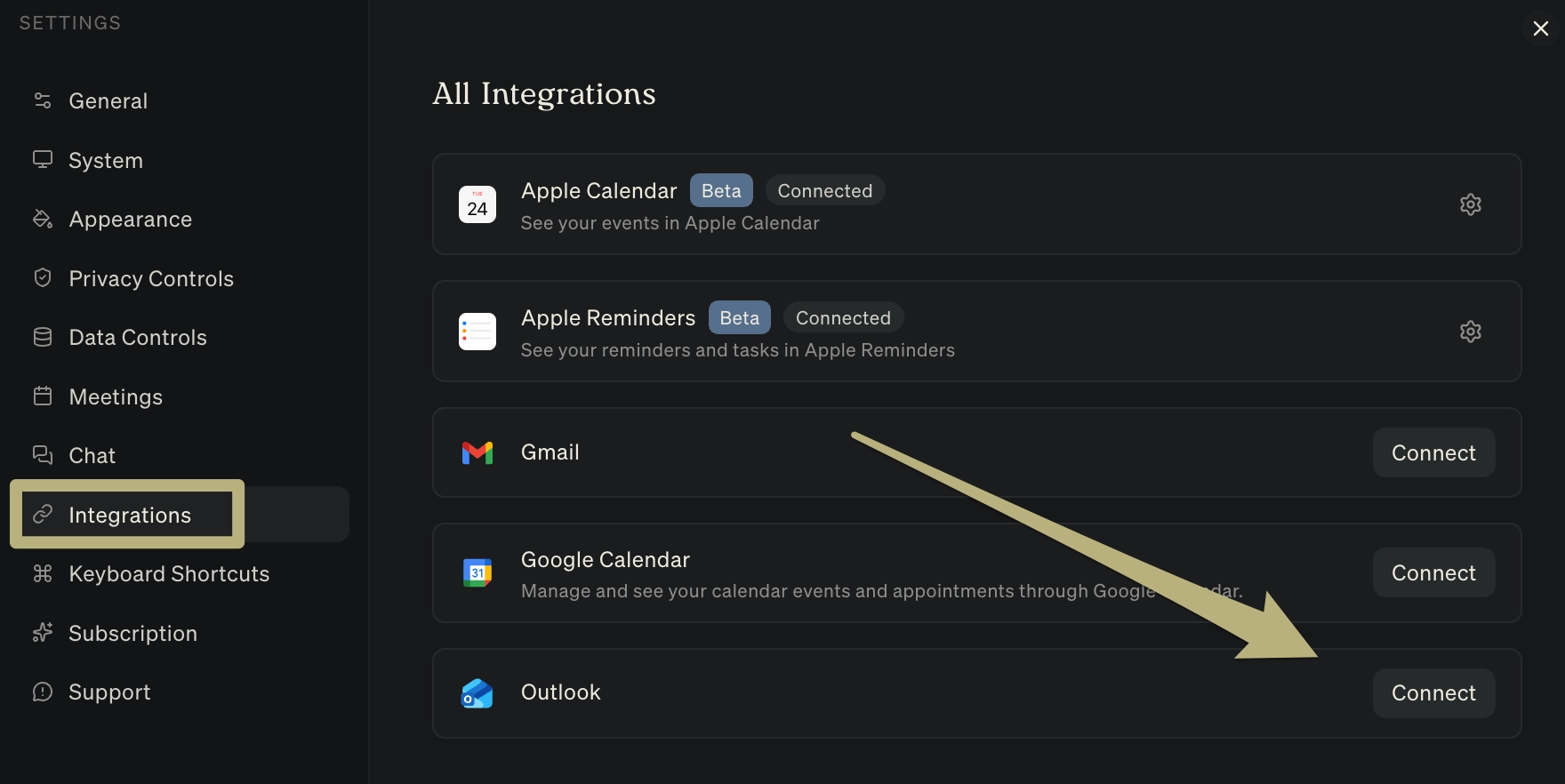
Find Outlook and click Connect
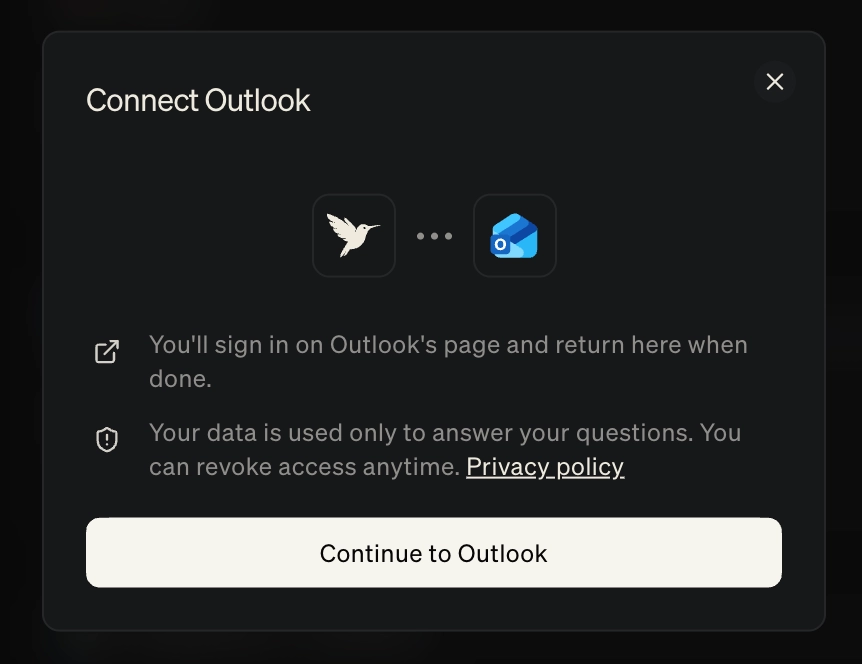
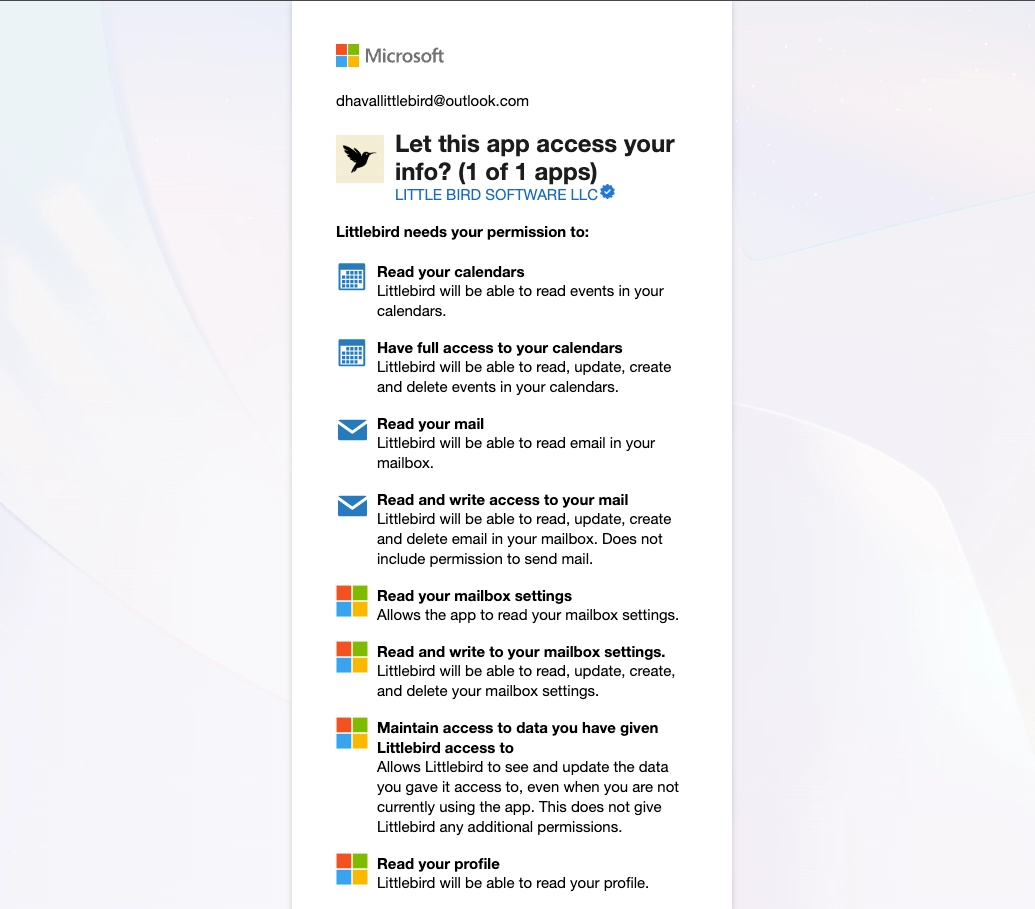
Sign in with your Microsoft account and authorize access
Once connected, the integration will appear as active in your settings

What you can do
Calendar
With your Outlook calendar connected, Littlebird can:
View your schedule and upcoming events
Create, edit, and delete calendar events
Cancel events and notify attendees
Find available meeting times
Check coworker availability
Example prompts:
"What does my schedule look like for the rest of this week? Flag any conflicts or back-to-back blocks."
"Schedule a 30-minute meeting with [name] sometime Thursday afternoon. Find a time that works for both of us."
Reading email
Littlebird can search and read your Outlook email directly:
Search for emails by keyword, sender, or date across all folders or within a specific one
Read full message content
Move emails across folders
View attachment info (file names, sizes, and types)
Cannot download and view underlying attachment content
Example prompts:
"Find the most recent email from [name] about the project timeline."
"Show me any unread emails in my inbox from the last 24 hours. Organize by urgency."
Drafting and organizing email
Littlebird can also help you compose and manage messages:
Draft new emails, replies, and forwards
These will then exist in your Drafts folder
Move messages between folders
Mark messages as read or unread
Flag and categorize messages
Example prompts:
"Draft a reply to [name]'s email about the contract review. Keep the tone professional and confirm the Friday deadline."
"Move all emails from [sender] to my 'Reviewed' folder."
Tip: Try quickly scheduling a calendar event or drafting an email with Hummingbird Quick Access
What's not currently supported
To keep the integration secure and focused, a few actions are not available:
Sending emails. Littlebird can draft emails for you, but sending happens on your end. This keeps you in full control of what goes out
Downloading or adding attachments. Littlebird can see attachment info but can't open, download, or attach files
Inbox rules. Creating or modifying mail flow rules is not supported
Deleting emails. Littlebird can move and organize messages but can't delete them
If you also use Gmail or Google Calendar
Littlebird supports both Microsoft and Google integrations, and you can connect them simultaneously. Here's how they compare:
Capability | Outlook | Gmail + Google Calendar |
|---|---|---|
Read emails | ✓ | ✓ |
Draft, reply, and forward emails | ✓ | — |
Move, flag, and categorize emails | ✓ | — |
Send emails | — | — |
Calendar: view, create, edit, and delete events | ✓ | ✓ |
Check coworker availability | ✓ | ✓ |
The key difference is on the email side: the Outlook integration lets you draft, organize, and manage messages, while the Gmail integration is read-only.
Troubleshooting
The integration isn't connecting. Check whether your organization requires admin approval for third-party app access. If you're on a personal Microsoft account, try signing out and reconnecting from Settings > Integrations.
Littlebird can't find my calendar events. Make sure the events are on the primary calendar associated with your connected account. Shared or delegated calendars may not sync automatically.
I connected Outlook but Littlebird is still only reading my screen. After connecting, try asking a direct question about your calendar or email (e.g., "What meetings do I have tomorrow?"). The integration activates when Littlebird needs to pull data beyond what's visible on your screen.