
Gathering context and integrations
Your first couple of days with Littlebird
Instant context
Once you have Littlebird installed, it’s capturing your context right out of the box. No additional steps required. We recommend immediately pulling up the key apps you'll be leveraging through Littlebird, for example your email, notes app, project tools, or calendar apps.
You’ll see two icons where you can ensure context awareness is active:
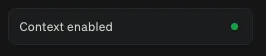
In the Littlebird app, look at the bottom left corner
If the green light is on, you’re all set
In the MacBook menu bar at the top right of your screen
If context awareness is paused, you’ll see a pause icon next to the bird

Integrations: Connecting your calendar and email
During installation, you should’ve been prompted to connect your email and calendar. If not, you can follow the instructions below:
How to connect
Connecting your account is a one-time, secure process.
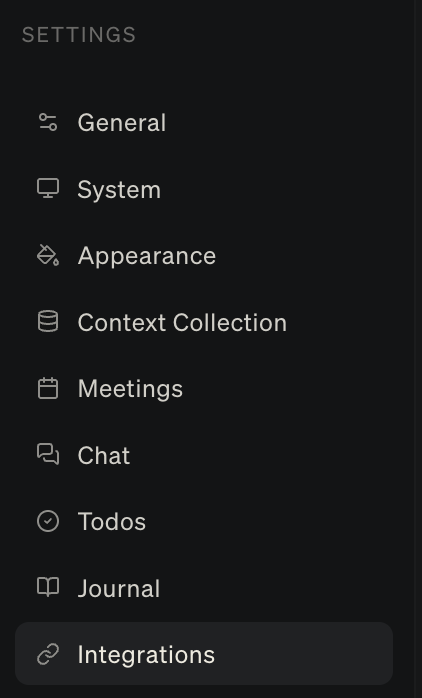
Navigate to Settings by clicking your name in the bottom left, then click Integrations
Find Google Calendar and toggle it on.
You will be redirected to a Google authentication screen. Choose the Google account you want to connect.
Review the permissions screen and click Allow.
You'll be redirected back to Littlebird, where you'll see the Active status.

We currently support integrations for Gmail and Google Calendar.
Support for Apple Calendar, Apple Reminders, and Outlook coming soon.