Meeting assistant
Your first couple of days with Littlebird
One of our favorite ways to use Littlebird is to have it act as an assistant, prepping us for calls and meetings, transcribing and summarizing these calls, and then taking care of the post-meeting action items.
Let’s focus on mastering this Meeting Lifecycle: Prep, Record, and Follow-up.
Part 1: Preparation
Instead of searching through your inbox or Slack history 5 minutes before a call, let Littlebird assemble the context for you.
How to do it
Since you've already connected your Calendar, Littlebird knows who you are meeting. Before your next call, try these prompts:
The refresher:
I have a meeting with [Name] coming up. Remind me what we discussed last time and prep me for what we should focus on.The agenda builder:
Based on my last chat with [Name], suggest 3 agenda items for our call today.
To save time, try using our Chat Library again and going to the Communication section.
Then click the Call Briefing 1-Pager and tell Littlebird who you’ll be meeting with.
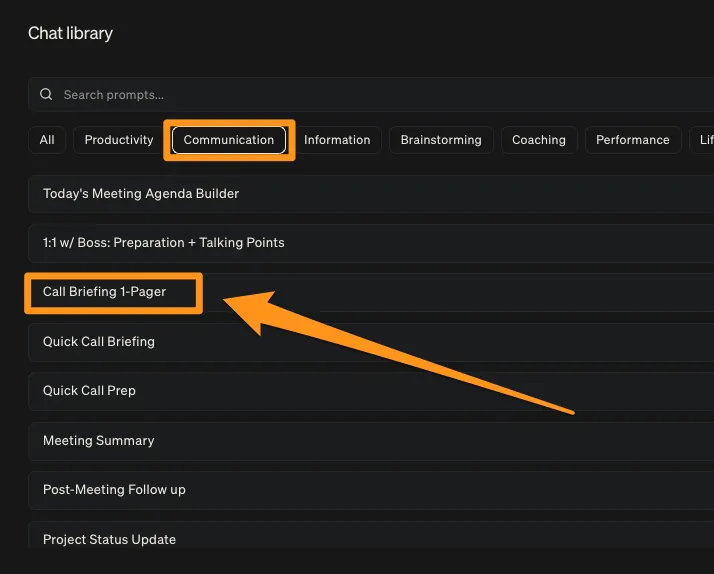
After Littlebird provides you a briefing, feel free to give it feedback on the format and output to fine tune it to your needs. Try telling it to include a section like, 'What are the ideal outcomes of this meeting?'
From there, we recommend starring this chat by clicking the Star icon in the top-right corner. This will move the thread to your favorites. You can right-click the Chat on the left side and rename it to Call Prep Thread.

Littlebird will remember the opening prompt, and you can use this thread going forward as your go-to chat for call and meeting preparation.
Next time you have a call, you can simply open this chat and say something like, now prep me for my call with [insert name].
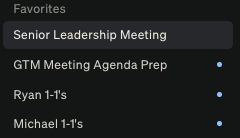
Our team creates dedicated Chat threads for key team meetings so it's easy to show up prepared and ready to contribute.
Part 2: Meeting Notes and transcription
The best way to be present in a meeting is to stop worrying about taking notes. Littlebird’s Meeting Notes feature captures the audio and transcript so you can focus on the conversation.
How it works
Littlebird gives you two easy ways to capture a meeting, ensuring you're always in control.
Option 1: The automatic prompt
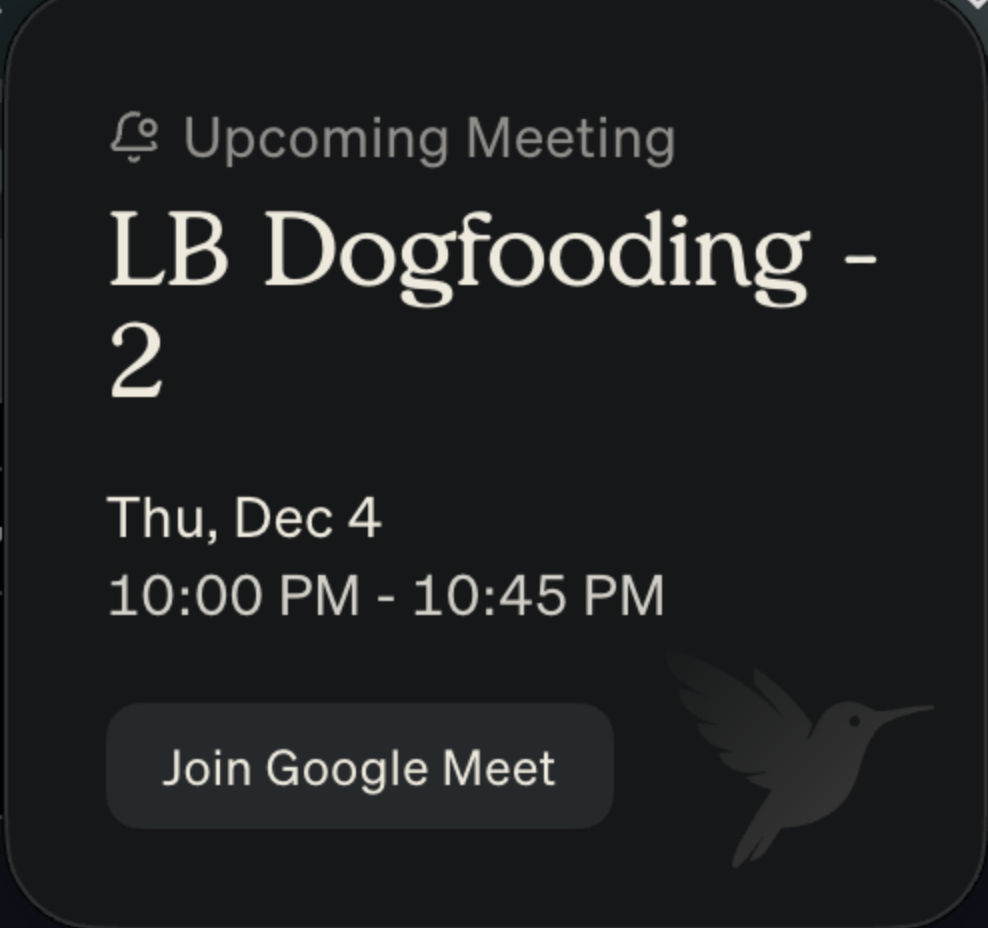
A few minutes before any event on your calendar, Littlebird will automatically display a small pop-up asking if you'd like to record the upcoming meeting.
Click the Join Meeting button, and Littlebird will be ready to capture the conversation as soon as it begins. You can configure how early this pop-up appears in your Settings tab.
Option 2: Manual recording
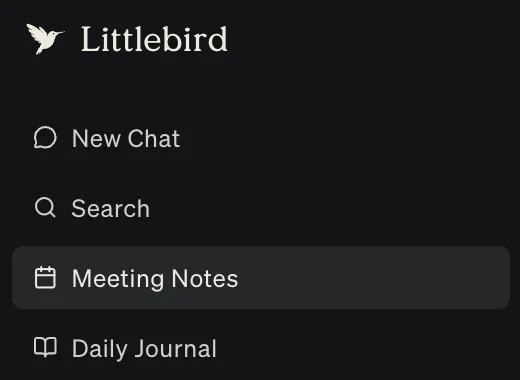
You can start transcribing at any time. Just open the Littlebird app, navigate to Meeting Notes, and click the + New Note button in the top right corner to start capturing the context of your call.
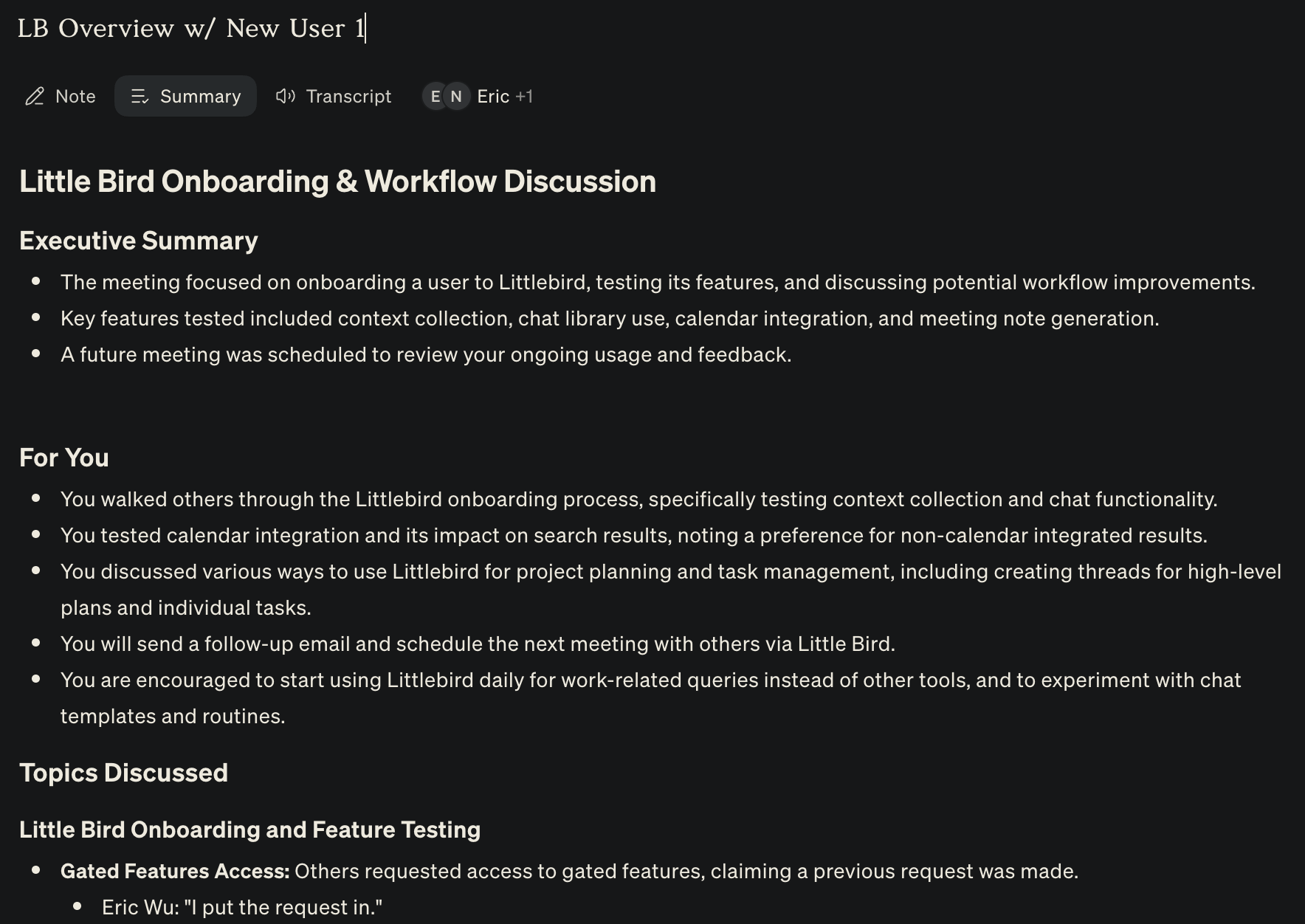
Once the meeting is over, you’ll see a Summary output you can review and edit:
Part 3: Easy post-call emails and action items
You just finished a 45-minute strategy session. It was productive, but long, and now you need to send a summary to the team.
Usually, this effort adds another 30+ minutes to your work, summarizing topics, listing and assigning action items and next steps, and pulling a list of all the attendees to send this email to.
Use Littlebird to quickly generate this output, saving you a bunch of time.
The workflow:
Summarize: Immediately after the recording ends, open a new chat and ask:
Summarize the call I just had. Highlight the key decisions made and any action items assigned to me.Draft: Have Littlebird write the email by asking in the same thread:
Draft a follow-up email to the participants summarizing those points. Keep the tone casual but clear. Include the email addresses for all attendees at the top.Verify: Read the draft, make any small tweaks, and then copy the output and paste it into your email.
Alternatively, feel free to try using the Chat Library again and using one of the post-meeting prompts under the Communication section.
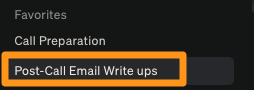
Success check: You should be able to go from hanging up the call to sending a comprehensive follow-up email in under 2 minutes.
Rinse and Repeat: Similar to your Call Preparation, Star this thread to add it to your Favorites and use it each time you need to send a follow-up.