
Introduction to Meeting Notes
Meeting Notes automatically transcribes and summarizes your meetings, so you can stay fully present in the conversation while Littlebird captures the details.
After ending your recording, Littlebird delivers a comprehensive, structured summary directly to you. This means you can focus entirely on the conversation, not on typing.
With Meeting Notes, you can:
Be more present: Stop multitasking and engage fully with your team, knowing that every detail is being captured
Nothing gets lost: Get a detailed, accurate record of every discussion, decision, and deadline
Automatic alignment: Key decisions and action items are clearly documented, ensuring everyone is on the same page
No extra attendees: Littlebird transcribes your computer's audio directly, with no meeting bots joining your call
How it works
Littlebird gives you two easy ways to capture a meeting, ensuring you're always in control.
Option 1: The automatic prompt
A few minutes before any event on your calendar, Littlebird will automatically display a small pop-up asking if you'd like to record the upcoming meeting. Click the Join Meeting button, and Littlebird will be ready to capture the conversation as soon as it begins. You can configure how early this pop-up appears in your Settings tab.
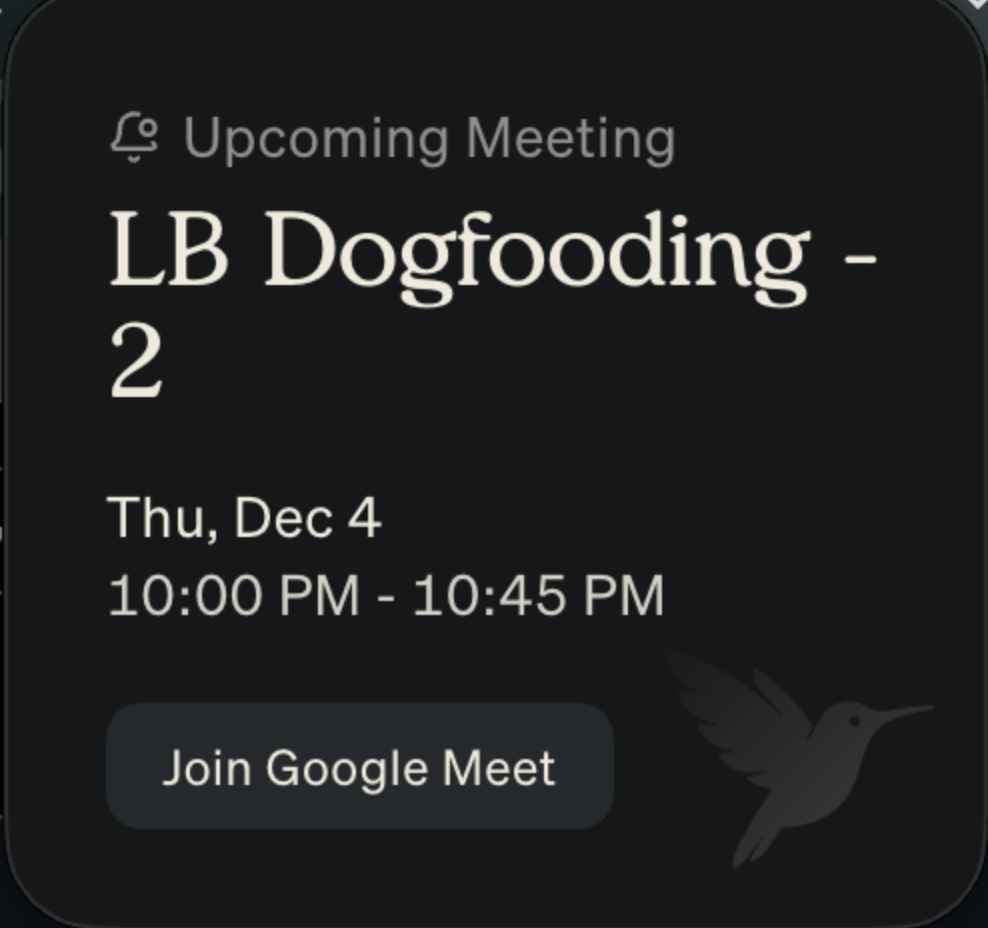
Option 2: Manual recording
If you're jumping into an unscheduled call or you dismissed the automatic prompt, you can start recording at any time. Just open the Littlebird app, navigate to Meeting Notes, and click the + New Note button in the top right corner to start capturing the context of your call.

Once your meeting is over, Littlebird uses the context of the transcript to generate a concise, structured summary. You can find all your completed meeting notes in the Meetings Notes tab.
Bonus tip: During a meeting, you can type your own notes in the Note section or view the live transcription in the Transcript section to quickly reference what was just said.
The anatomy of a Meeting Note
Every Meeting Note is automatically organized into clear, scannable sections, giving you the information you need at a glance. At the top, you can easily toggle between your own Note section, the AI-generated Summary, and the full Transcript as well.
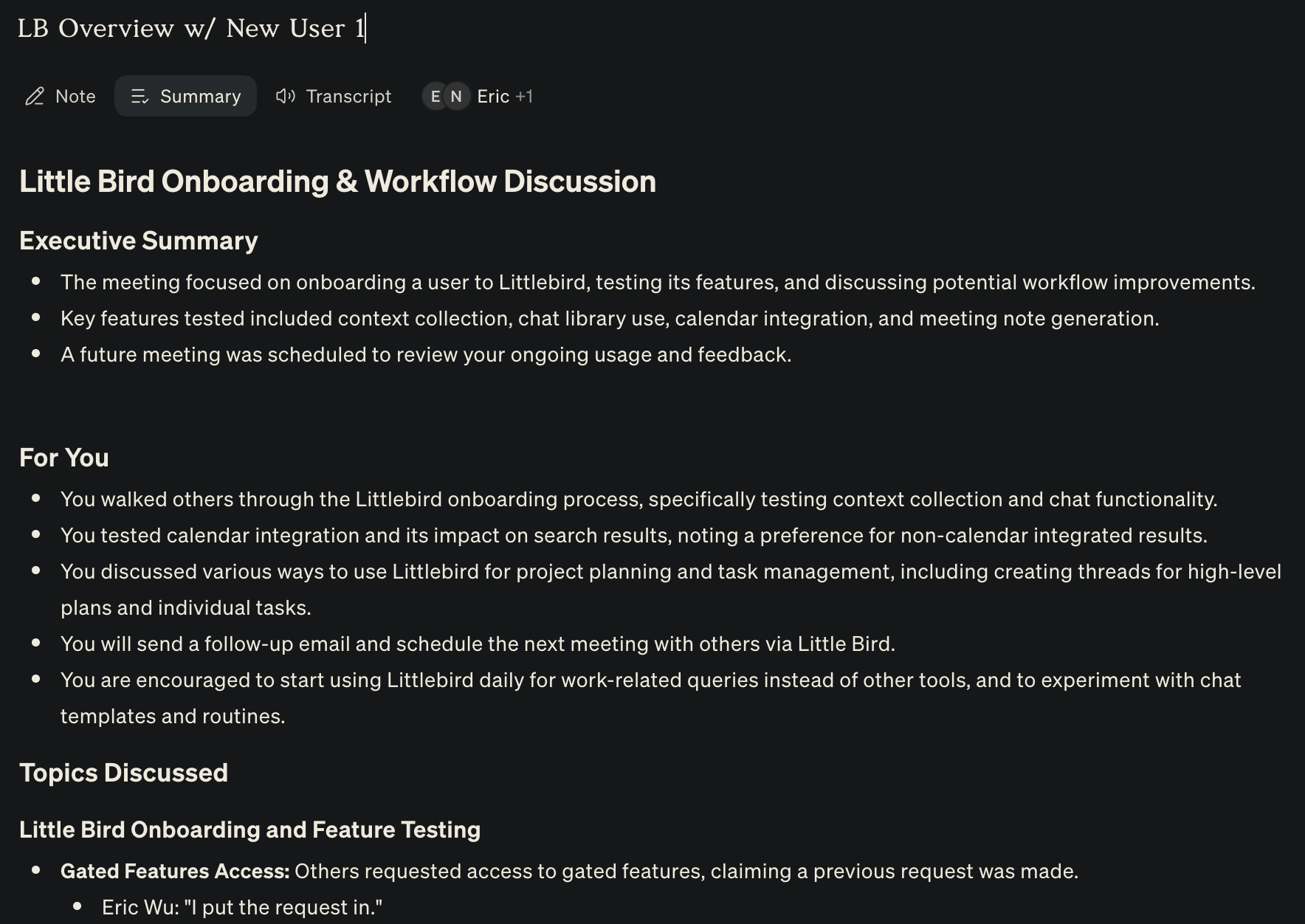
Here’s what you can expect to find in the Summary view:
Executive summary: A high-level, one-paragraph overview of the entire conversation. This is perfect for getting the gist of the meeting in seconds.
For you: This is your personalized action-item list. Littlebird analyzes the conversation and extracts the specific tasks, commitments, and follow-ups assigned directly to you.
Topics discussed: A more detailed, bullet-point breakdown of the key subjects covered in the meeting, often including important quotes to preserve specific details and context.
Decisions: A clear, unambiguous list of the key decisions that were made during the call.
Action items: This is your complete to-do list. Littlebird intelligently separates action items assigned to You from those assigned to Others, so you can immediately see what you're responsible for.
Risks/open questions: This crucial section highlights potential blockers, risks, and unresolved questions raised, ensuring important concerns don't get lost after the meeting ends.
Just like your Daily Journal entries, every part of the generated summary is editable. Simply click into any section to add your own thoughts, corrections, or context. You can also share a link to the summary, making it easy to bring a colleague up to speed or reference a specific decision.