
Introduction to Chat: Settings and features
1. Your Chat window: A quick tour
The Chat window is your primary way of interacting with Littlebird. It's designed to be simple and intuitive. Let's take a quick tour of its key features so you know where everything is.
New Chat button: Click New Chat to start a new conversation with a clean slate.

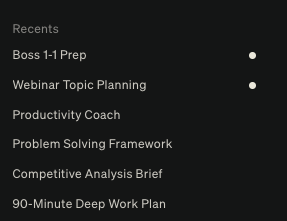
Chat history: Your past conversations are saved on the left side under "Recents" for easy reference.
Prompt input box: This is where you'll type your requests to Littlebird. You'll see three icons on the bottom left that enable additional functionality.
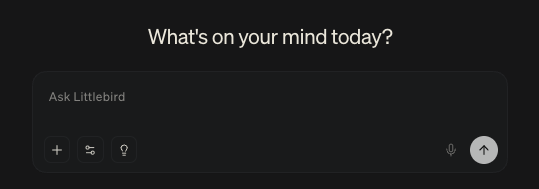
Additional functions (left to right):
Uploading documents
Attach files (PDFs, .docx, text, images) to a chat for Littlebird to analyze. The content is only used within that specific conversation and is deleted with the chat.
Integrations
Littlebird can connect directly to your Google Calendar to access your schedule and review your calendar. You can request more integrations through the "Feedback" tab.
Note: When the calendar integration is turned on, your calendar feed is prioritized above other context. We recommend turning it off when you're not directly referencing your calendar.
Deep Research
Extra processing power is put into your query, leading to Littlebird thinking more carefully before answering (but this often takes longer to generate a response).
These chats are limited to Plus accounts. Plus accounts are provided with 15 credited Deep Research chats every 24 hours.
Microphone
Activate voice input to record your prompt
Send Chat arrow
Send the Chat so Littlebird can respond
Feedback buttons (thumbs up/down): Let us know if a response was helpful or not. This goes directly to our team and helps us improve Littlebird.
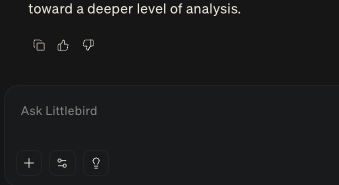
You can downvote (thumbs down) a Chat output, which lets us know when a Chat didn't meet your expectations.
Pro tip: Help us out by explaining what you expected the Chat to provide so we understand where the response fell short.
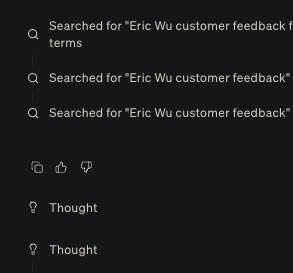
You can also downvote a section of the "Thinking Process" if you notice the context Littlebird used was incorrect or irrelevant. This helps flag when the thinking is right, but the source material is wrong.
Star/Favorite button: Mark a conversation as important. This will be located in the top right of your Chat.
Share Link button: Get a direct link to a specific response. The Chat is snapshotted at the moment you create the link; future chats within that thread will not be included in the output unless you click it again to update the link. This is also included in the top right of your Chat.

2. Organizing your conversations
Over time, you'll have many conversations with Littlebird. Here's how to keep them organized.
Starring a Chat: If a conversation is particularly important or you know you'll need to reference it again, click the Star icon at the top of the chat. This will add it to your "Favorites" list, making it easy to find later.
Sharing a link to a Chat: To reference a specific answer or share a useful chat with a colleague, you can create a direct link. Click the Share icon on a specific response to generate a unique URL that will take anyone directly to that point in the conversation.
3. Improving Littlebird with your feedback
Your feedback is essential for making Littlebird smarter and more helpful. The single best way you can contribute is by using the feedback buttons on every response.
Why it Matters: Clicking the thumbs up or thumbs down icon sends a direct signal to our team about what makes a response good or bad. A "thumbs up" tells us the response was helpful and accurate. A "thumbs down" lets us know it missed the mark.
How it helps: This continuous feedback loop is crucial for improving the quality of all responses over time. It's a simple, powerful way for you to partner with us in improving Littlebird for everyone.
4. How memory works across chats
It's helpful to understand how Littlebird uses memory to provide the best possible answers.
Littlebird's memory is most powerful within a single, continuous conversation. It remembers what you've discussed earlier in that specific chat and uses that context to inform its later responses.
Best practice: For complex, multi-step tasks that rely on previous context (like planning a project or iterating on a document), it's always best to stay within the same chat thread. Starting a new chat is like starting with a fresh, clean slate. The context and memory from your previous conversations may not always be carried over.
Pro tip: You can check what's stored in Littlebird's memory by going to Settings > Chat and checking what's listed in your Chat Notes.
Now that you're comfortable with the interface and how to manage your conversations, you're ready to move beyond simple questions and start crafting powerful, strategic prompts.
Next up: